Vicky, Your Compliance Copilot
Vicky, your Compliance Copilot, performs Asenion Assessments with your own AI assistant, such as Claude or Claude Code. Connect your AI assistant to Vicky, and it can do assessment work for you. It finds your use cases, reads the open questions, drafts answers from your files with the evidence quoted, and sends the finished assessment for review.
Your AI assistant only drafts. Every answer it saves is marked Draft by AI, and you and your team review and approve it in Asenion as you do today. It never approves anything and never replaces an answer someone gave.
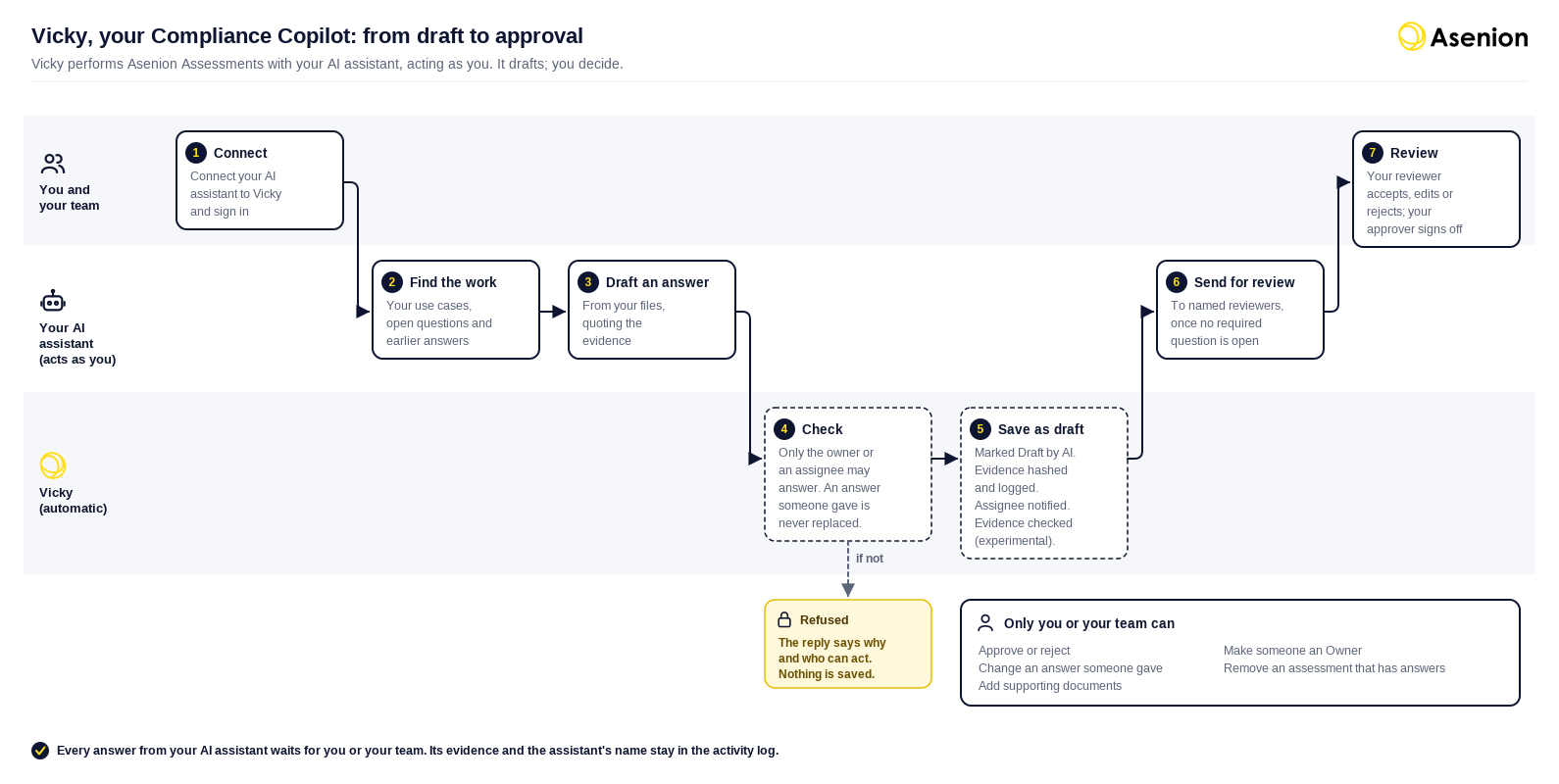
Table of Contents
- Who it acts as
- Connect your AI assistant
- What your AI assistant can do
- What only you or your team can do
- Rules Vicky enforces
- The evidence check
- What reviewers see
- Tool reference
Who it acts as
Your AI assistant acts as you, with exactly your access. It sees only the use cases you can open (the app calls a use case a “project”), and it can do only what your role allows. Every request goes through the same access and role checks as the web app.
Every member of an organisation can use it.
Vicky is not Asenion Witness. The two are separate connectors with separate sign-ins, and each refuses the other’s credentials.
| Vicky | Asenion Witness | |
|---|---|---|
| What your AI assistant does | Drafts answers to assessment questions | Asks for policy guidance before it acts. Each consult is recorded |
| Address | https://<your Asenion address>/mcp | https://<your Asenion address>/guardian/mcp |
| Name in your client | vicky | asenion-witness |
Connect your AI assistant
Claude (web, desktop and mobile)
- In Claude, open Settings, then Connectors.
- Choose Add custom connector. Name it
Vickyand pastehttps://<your Asenion address>/mcp. - Click Connect and sign in to Asenion if asked.
- Check the organisation named on the page, then choose Allow.
On a Claude Team or Enterprise plan, an Owner can add the connector once for everyone, under Organization settings › Connectors. Each person then clicks Connect in their own Connectors list.
Claude Code
claude mcp add --transport http vicky https://<your Asenion address>/mcp
Then start Claude Code and type /mcp. Choose vicky, then Authenticate, and sign in to Asenion in the browser window that opens.
Clients that cannot sign in
Use a personal API token instead. In Asenion, open Settings › Personal › Access Tokens and create a token. Then send it with each request as Authorization: Bearer <token>.
| Sign-in | Personal API token | |
|---|---|---|
| Reaches | The one organisation you approved | Every organisation you belong to |
| Ends when | You sign out under Access Tokens | It expires or you remove it |
Keep a token private. Project-scoped tokens are refused, and so are accounts that are deactivated or not yet verified.
What your AI assistant can do
Ask in plain language, for example: “Which of my use cases have open questions?” or “Answer the data governance questions on the hiring model from these documents.”
| Area | What it can do |
|---|---|
| Find the work | List your use cases. List each one’s assessments by category: screening, assessments, testing, monitoring and mitigation. Show what needs you today and list your tasks. |
| Read | Open questions, a question in full with a link to it in the web form, and every answer already given. Search how a similar question was answered in another assessment or use case, so its answers stay consistent with yours. |
| Answer | Draft an answer with evidence: option, text, number, metric or card answers. Upload a file as the answer to an upload question. |
| Screen | Start a new AI system with its screening. Once no required screening question is open, the use case is classified, as long as you are its lead or owner. |
| Organise | Assign a question to a member. Attach policy packs. Add, edit and remove members. Start a new assessment version. Your role must allow each of these. |
| Hand over | Show completion and compliance, and send the assessment to named reviewers. |
| Look back | Read a use case’s Witness records, to see what agents actually did at run time. |
What only you or your team can do
- Review, approve or reject an assessment.
- Change an answer someone gave.
- Add supporting documents through the attachments drawer, the Document Hub or SharePoint import.
- Make someone an Owner of a use case.
- Remove an assessment that has answers, attached documents or test results.
- Invite someone who has no account in the organisation yet.
Rules Vicky enforces
| Rule | What happens |
|---|---|
| Drafts only | Every answer is saved as Draft by AI. Only an AI assistant can set that status. |
| Who may answer | As in the web app, you may answer only if you own the use case, or the assessment or question is assigned to you. Otherwise the answer is refused, and the reply says how to get the question assigned. |
| Your answers stand | If you or a colleague already answered a question, your AI assistant’s answer is refused. The reply asks you to change it in the web app. The same applies to uploads. |
| Assignments stay with your team | A draft leaves the question’s assignment open. If the question is assigned to someone else, that person gets an in-app notification that a draft is ready. |
| Hidden questions | An answer to a question that other answers have hidden is saved, with a warning that the form does not show it and completion does not count it. |
| Review | The assessment can be sent for review only when no required question is open. Reviewers must be members of the use case with the Reviewer role. The due date defaults to 7 days. |
| Audit | Each answer writes an Agent answer saved entry to the activity log. The entry names your AI assistant, you, and a SHA-256 hash of the answer and its evidence. Each upload writes Agent file uploaded with the file’s hash. |
Evidence can be a quoted excerpt with its source, a link, or the test run that produced a result. Each answer takes up to 20 pieces. A one-time upload link lasts 15 minutes and takes one file of up to 5 MB, in a file type the question accepts.
The evidence check
This feature is experimental.
A decision model reads each answer your AI assistant gives, together with its evidence. It judges whether the evidence supports the answer, contradicts it, or is insufficient.
- An answer with no evidence is judged insufficient straight away.
- The same answer and evidence, judged by the same model, always keeps its first label.
- The check is never part of the compliance figure.
- When a reviewer accepts, edits or rejects the answer, that outcome is stored beside the judgement, so the model can be measured.
What reviewers see
- The question is marked Draft by AI, with your AI assistant’s evidence.
- A badge on the answer: Evidence supports, Evidence contradicts, Evidence insufficient or Evidence not checked. The badge is marked experimental, and its tooltip gives the model and its reason.
- The assignee’s in-app notification, and the activity log entries.
Tool reference
For developers and anyone checking what a client is calling.
| Tool | Does |
|---|---|
projects | Lists the use cases you can open, with assessment counts |
create_project | Starts a new AI system with its screening. Needs org:create_project |
obligations | A use case’s assessments by category, with status and completion |
today, my_tasks | What needs you today; your assigned questions and assessment tasks |
open_questions, get_question | Visible unanswered questions; one question in full, with editable and web_url |
answers, search_answers | Answers in an assessment or a whole use case; how a question was answered elsewhere |
submit_answer | Saves one answer as Draft by AI, with evidence |
upload_link | A one-time link for a file answer, or for a file field in a card |
status | Completion, compliance and who it is waiting on |
submit_for_review | Sends an assessment to named reviewers |
assign_question | Assigns or unassigns a question |
attach_policies, remove_assessment | Adds policy packs; removes an assessment that has no answers |
assessment_versions, create_assessment_version | Lists versions; starts one from an approved, rejected or published version |
project_members, add_project_members, edit_project_member, remove_project_members | Manages who is on a use case |
witness_records | A use case’s Witness records |
Related pages
- Asenion Witness: policy guidance for agents at run time
- Workflow: review and approval
- Permissions: what each role allows